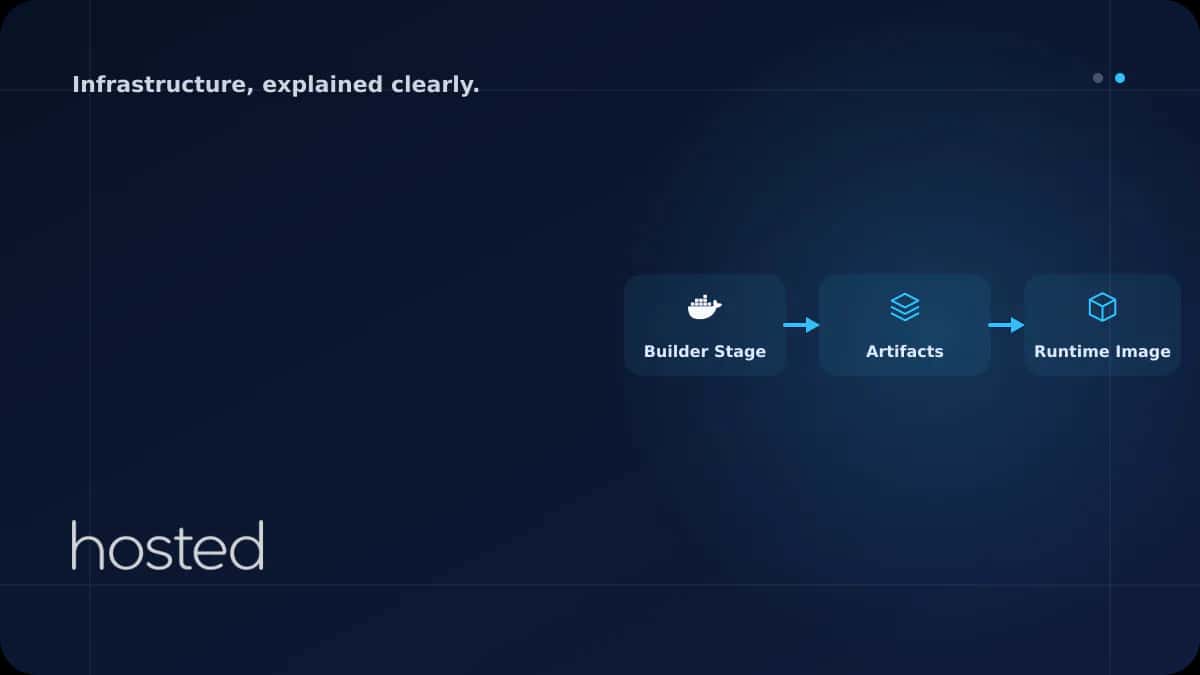
Docker Multi-Stage Build: Creating Production-Ready Images
Standard Dockerfiles typically include build tools, development dependencies, and unnecessary files in the final image. This bloats image size and expands the attack surface. Docker multi-stage build lets you define multiple stages in a single Dockerfile, copying only production-essential files into
Merve Arslan
WordPress & Hosting Expert
Standard Dockerfiles typically include build tools, development dependencies, and unnecessary files in the final image. This bloats image size and expands the attack surface. Docker multi-stage build lets you define multiple stages in a single Dockerfile, copying only production-essential files into the final image.
Why Use Multi-Stage Builds?
Consider a single-stage Node.js Dockerfile: devDependencies in node_modules, the TypeScript compiler, test frameworks, and source files all end up in the final image. For a typical Node.js application, this difference can be 800 MB versus 150 MB.
| Criteria | Single-Stage | Multi-Stage |
|---|---|---|
| Image Size | 600-1200 MB | 80-200 MB |
| Build Tools | Remain in image | Build stage only |
| Attack Surface | Wide (unnecessary packages) | Minimal (runtime only) |
| Pull/Deploy Time | Slow | Fast |
Node.js Multi-Stage Build Example
The following Dockerfile consists of three stages: dependency installation, build, and production. Each stage passes only the required files to the next.
# Stage 1: Install dependencies
FROM node:20-alpine AS deps
WORKDIR /app
COPY package.json package-lock.json ./
RUN npm ci

# Stage 2: Build the application
FROM node:20-alpine AS builder
WORKDIR /app
COPY --from=deps /app/node_modules ./node_modules
COPY . .
RUN npm run build

# Stage 3: Production image
FROM node:20-alpine AS runner
WORKDIR /app
ENV NODE_ENV=production

# Security: non-root user
RUN addgroup -S appgroup && adduser -S appuser -G appgroup

# Production dependencies only
COPY --from=deps /app/package.json ./
RUN npm ci --only=production && npm cache clean --force

# Compiled output
COPY --from=builder /app/dist ./dist

USER appuser
EXPOSE 3000
CMD ["node", "dist/main.js"]
💡 Tip: npm ci differs from npm install by strictly following package-lock.json and removing existing node_modules. Always use npm ci in CI/CD environments for reproducible builds.
Go Application: Minimal Build with Scratch Image
Since Go produces static binaries, you can use scratch (completely empty) or distroless as the final image. This reduces image size to 10-15 MB with no shell available.
# Build stage
FROM golang:1.22-alpine AS builder
WORKDIR /app
COPY go.mod go.sum ./
RUN go mod download
COPY . .
RUN CGO_ENABLED=0 GOOS=linux go build -ldflags="-s -w" -o /app/server ./cmd/server

# Production: scratch = completely empty image
FROM scratch
COPY --from=builder /app/server /server
COPY --from=builder /etc/ssl/certs/ca-certificates.crt /etc/ssl/certs/
EXPOSE 8080
ENTRYPOINT ["/server"]
Python Multi-Stage Build
Python applications often need gcc and build-essential to compile C extensions during the build stage. Multi-stage build lets you exclude these tools from the final image.
# Build: compile C extensions
FROM python:3.12-slim AS builder
RUN apt-get update && apt-get install -y --no-install-recommends \
    gcc libpq-dev && rm -rf /var/lib/apt/lists/*
WORKDIR /app
COPY requirements.txt .
RUN pip install --user --no-cache-dir -r requirements.txt

# Production: no gcc, runtime only
FROM python:3.12-slim
WORKDIR /app
COPY --from=builder /root/.local /root/.local
COPY . .
ENV PATH=/root/.local/bin:$PATH
EXPOSE 8000
CMD ["gunicorn", "app:create_app()", "-b", "0.0.0.0:8000"]
Layer Cache Optimization
Docker stores each Dockerfile instruction as a separate layer. When a layer changes, all subsequent layers are rebuilt. Place frequently changing files (source code) last and rarely changing files (dependencies) first.
-
Copy package.json before source code Copy dependency files with a separate COPY command. When source code changes, npm ci won't re-run.
-
Use .dockerignore Add node_modules, .git, dist, test, and log files to .dockerignore. This reduces build context size and preserves cache.
-
Combine RUN Commands Merge multiple apt-get or apk commands into a single RUN. Each RUN creates a new layer.
# Build targeting a specific stage
docker build --target builder -t myapp:test .

# Parallel build with BuildKit (faster)
DOCKER_BUILDKIT=1 docker build -t myapp:v1.0.0 .

# Check image size after build
docker images myapp
# REPOSITORY  TAG     SIZE
# myapp       v1.0.0  147MB

# Security scan
trivy image --severity CRITICAL,HIGH myapp:v1.0.0
For Docker image security scanning, check our Container Security guide. For CI/CD pipeline setup, see our GitHub Actions guide. For Kubernetes deployment, read our Introduction to Kubernetes guide. The official Docker documentation on multi-stage builds and build cache optimization are valuable additional resources.
Frequently Asked Questions
Does multi-stage build increase build time?
The first build may take slightly longer, but subsequent builds are generally faster thanks to Docker layer cache. With BuildKit, stages can run in parallel, reducing total build time.
How many stages should I use?
Typically 2-3 stages are sufficient: dependency installation, build, and production. More stages add complexity. Each stage should have a clear purpose.
Are Alpine images always the smallest option?
Alpine is generally the smallest but uses musl libc. Some Python and Node.js packages require glibc. In those cases, use Debian slim or distroless. For Go applications, scratch is the smallest option.
How do I access files from intermediate stages?
Use COPY --from=stage_name to copy files from any previous stage. You can also use stage numbers (0, 1, 2) instead of names, but named stages are more readable.
What is BuildKit and why should I use it?
BuildKit is Docker's next-generation build engine. It offers parallel stage execution, advanced cache management, and secret mount support. It's enabled by default in Docker 23.0+.
Conclusion
Docker multi-stage build can reduce image size by 70-90%, shrink the attack surface, and speed up deployments. Separate dependency installation from build stages, use .dockerignore, and optimize layer cache. Choose the right base image for each language to keep your production environment secure and fast.
High Performance for Your Container Infrastructure
Run your Docker containers at NVMe SSD speed on Hosted Cloud servers.
Explore Cloud Server Plans →Merve Arslan
WordPress & Hosting Expert
Creating guide content on WordPress performance optimization, hosting selection, and e-commerce infrastructure.
Comments coming soon