Node.js PM2 Production Setup: Cluster, Logging and Deploy Guide
Your Node.js application runs fine in development with node app.js, but in production a single process crash takes down the entire service, logs get lost, and most CPU cores sit idle. PM2 has become the standard process manager for running Node.js applications in production. In this guide, we cover
Ahmet Yılmaz
Senior Infrastructure Engineer
Your Node.js application runs fine in development with node app.js, but in production a single process crash takes down the entire service, logs get lost, and most CPU cores sit idle. PM2 has become the standard process manager for running Node.js applications in production. In this guide, we cover PM2's cluster mode, log management, zero-downtime deployment, and Nginx integration with practical examples.
What Is PM2 and Why Do You Need It?
Node.js runs on a single thread. If your server has 4 CPU cores, it uses only one by default. There's no built-in mechanism to restart a crashed process. PM2 solves these problems: process monitoring, automatic restarts, multi-core utilization via cluster mode, and centralized log management. According to the official PM2 documentation, it's actively used on millions of production servers worldwide.
Installation and Basic Commands
# Global installation
npm install -g pm2

# Start application
pm2 start app.js --name "my-api"

# Check status
pm2 status

# View logs
pm2 logs my-api --lines 50

# Restart
pm2 restart my-api

# Stop and delete
pm2 stop my-api
pm2 delete my-api
Configuration with Ecosystem File
Instead of repeating parameters on the command line every time, you can define all configuration in a single file. The ecosystem.config.js file is the heart of PM2 - it centrally manages application name, cluster count, environment variables, and log settings.
module.exports = {
  apps: [{
    name: 'my-api',
    script: './dist/server.js',
    instances: 'max',           // Match CPU core count
    exec_mode: 'cluster',       // Cluster mode
    max_memory_restart: '512M', // Memory limit
    watch: false,               // Must be off in production
    max_restarts: 10,           // Max restarts in 15 min
    min_uptime: '10s',          // Stable threshold

    // Log settings
    error_file: './logs/error.log',
    out_file: './logs/output.log',
    log_date_format: 'YYYY-MM-DD HH:mm:ss Z',
    merge_logs: true,

    // Environment variables
    env_production: {
      NODE_ENV: 'production',
      PORT: 3000
    }
  }]
};# Start with ecosystem file
pm2 start ecosystem.config.js --env production
# Auto-start on server reboot
pm2 startup
pm2 save⚠️ Warning: Never use watch: true in production. It monitors file changes and causes unnecessary restarts. This feature is for development environments only.
Multi-Core Utilization with Cluster Mode
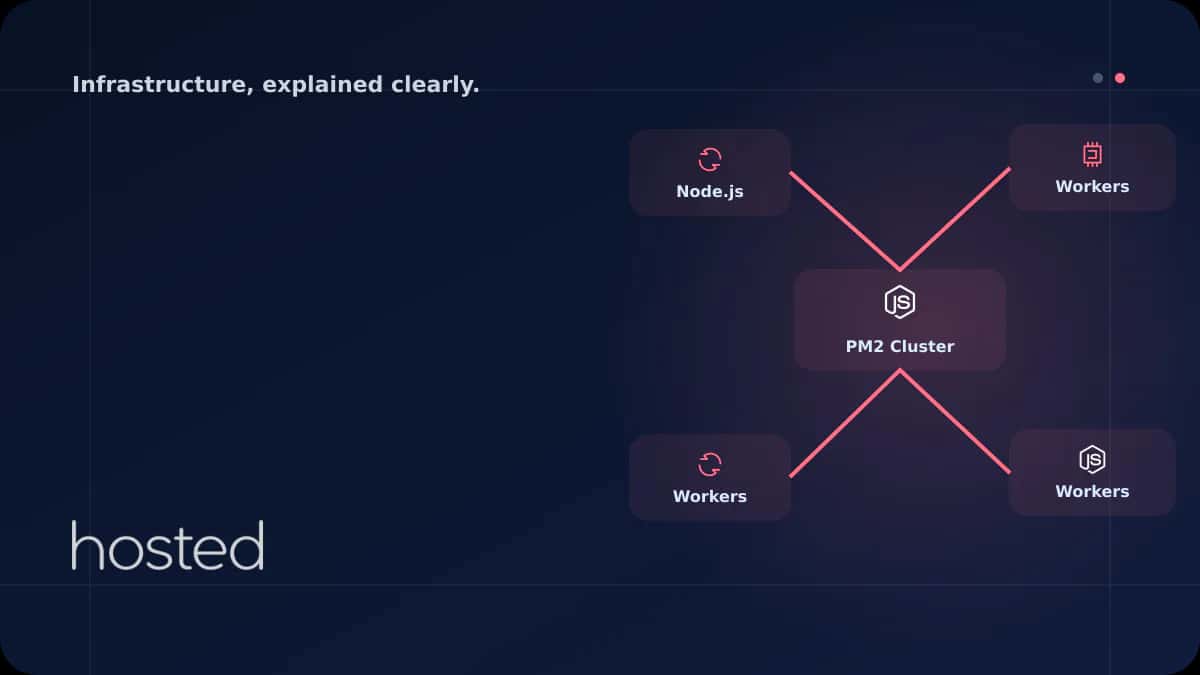
Since Node.js runs on a single thread, it uses only one CPU core by default. PM2's cluster mode uses Node.js's built-in cluster module to spawn a separate worker process on each core. Running 4 workers on a 4-core server theoretically lets you handle 4x more requests.
| Mode | CPU Usage | Fault Tolerance | When? |
|---|---|---|---|
| fork (default) | Single core | Low | Development, cron jobs |
| cluster | All cores | High | Production API/web servers |
💡 Tip: instances: 'max' uses all cores. However, if other services run on the server (Redis, Nginx, database), using instances: -1 to leave one core free is safer. On a 4-core server, this means 3 workers.
Log Management and Rotation
In production, logs grow rapidly. PM2's built-in log management is basic; the pm2-logrotate module automatically rotates log files and prevents disk from filling up.
# Install log rotation module
pm2 install pm2-logrotate

# Configure settings
pm2 set pm2-logrotate:max_size 50M      # Max size per file
pm2 set pm2-logrotate:retain 7           # Keep 7 files
pm2 set pm2-logrotate:compress true       # Compress old logs
pm2 set pm2-logrotate:dateFormat YYYY-MM-DD_HH-mm-ss
pm2 set pm2-logrotate:workerInterval 30   # Check every 30 sec
For structured logging, using a library like Winston or Pino in your application is recommended. JSON-formatted logs integrate easily with centralized log systems like ELK Stack or Grafana Loki.
Zero-Downtime Deployment
The traditional pm2 restart command stops all workers simultaneously and restarts them - incoming requests are lost during this window. pm2 reload performs a graceful reload: it restarts workers one by one, ensuring at least one worker is always active.
#!/bin/bash
# Zero-downtime deployment script

git pull origin main
npm ci --production
npm run build

# Graceful reload - zero downtime
pm2 reload ecosystem.config.js --env production

echo "Deploy completed: $(date)"
For graceful shutdown, your application needs to catch the SIGINT signal and close open connections:
const server = app.listen(PORT);

process.on('SIGINT', () => {
  console.log('Graceful shutdown started...');
  server.close(() => {
    // Close DB connections
    mongoose.connection.close();
    process.exit(0);
  });

  // Force exit if not closed within 10 seconds
  setTimeout(() => process.exit(1), 10000);
});
Nginx Reverse Proxy Integration
Running a Node.js application directly on port 80/443 is not recommended for security and performance reasons. Using Nginx as a reverse proxy lets you offload SSL termination, static file serving, rate limiting, and gzip compression from Node.js.
upstream nodejs_backend {
    server 127.0.0.1:3000;
    keepalive 64;
}

server {
    listen 443 ssl http2;
    server_name api.example.com;

    ssl_certificate     /etc/letsencrypt/live/api.example.com/fullchain.pem;
    ssl_certificate_key /etc/letsencrypt/live/api.example.com/privkey.pem;

    # Static files served by Nginx
    location /static/ {
        alias /var/www/my-api/public/;
        expires 30d;
        add_header Cache-Control "public, immutable";
    }

    location / {
        proxy_pass http://nodejs_backend;
        proxy_http_version 1.1;
        proxy_set_header Upgrade $http_upgrade;
        proxy_set_header Connection 'upgrade';
        proxy_set_header Host $host;
        proxy_set_header X-Real-IP $remote_addr;
        proxy_set_header X-Forwarded-For $proxy_add_x_forwarded_for;
        proxy_set_header X-Forwarded-Proto $scheme;
        proxy_cache_bypass $http_upgrade;
    }
}
For more details on Nginx reverse proxy, check out our Nginx Reverse Proxy guide.
Monitoring and Metrics
PM2 provides a built-in monitoring dashboard. The pm2 monit command lets you monitor CPU, memory, event loop lag, and active request count directly from the terminal.
# Live monitoring dashboard
pm2 monit

# Detailed info
pm2 show my-api

# JSON metrics (for automation)
pm2 jlist-
CPU Usage If consistently above 80%, increase worker count or upgrade server resources.
-
Memory (Heap) Continuously increasing memory usage indicates a memory leak. Set
max_memory_restartfor automatic restarts. -
Restart Count Frequent restarts indicate an unresolved bug in your application. Check error logs with
pm2 logs --err.
For more comprehensive monitoring, check out our Prometheus + Grafana monitoring guide.
Server Sizing
Your Node.js application's resource requirements vary based on request volume and processing type. I/O-intensive applications (API gateway, proxy) require less CPU, while CPU-intensive tasks (image processing, encryption) need more cores.
| Application Type | CPU | RAM | PM2 Instances |
|---|---|---|---|
| Simple API (~1K rps) | 2 vCPU | 2 GB | 2 |
| Mid-scale API (~5K rps) | 4 vCPU | 4 GB | 4 |
| High traffic (~10K+ rps) | 8+ vCPU | 8+ GB | 8+ |
For your Node.js hosting infrastructure, consider Hosted Cloud cloud servers.
Frequently Asked Questions
What's the difference between PM2 and forever?
Forever only keeps the process alive. PM2 offers comprehensive features including cluster mode, log management, zero-downtime deploy, monitoring dashboard, and ecosystem file. PM2 has become the standard choice for production environments.
Does cluster mode work with WebSocket?
Yes, but it requires sticky sessions. When using cluster mode with -i max, you can ensure session consistency using ip_hash in Nginx or Socket.IO's Redis adapter.
How do I use PM2 with TypeScript projects?
Compile TypeScript first (tsc or npm run build) and run the JavaScript output with PM2. Running directly with ts-node in production causes performance degradation.
Does PM2 auto-start after server reboot?
The pm2 startup command creates a systemd/init script, and pm2 save saves the current process list. When the server reboots, PM2 automatically starts all applications.
Should I use PM2 inside Docker?
Docker containers already provide process management. However, if you want cluster mode within a single container, use pm2-runtime. In Kubernetes environments, increasing pod replica count is a better approach than using PM2.
Conclusion
Managing your Node.js application in production with PM2 lets you utilize all CPU cores via cluster mode, ensure uninterrupted operation with automatic restarts, and simplify troubleshooting with centralized log management. Codify your configuration with an ecosystem file, enhance security with Nginx reverse proxy, and deploy with zero downtime using pm2 reload.
High-Performance Infrastructure for Your Node.js Project
Run your Node.js application at maximum performance in PM2 cluster mode with Hosted Cloud's NVMe SSD cloud servers.
View Cloud Server Plans →Ahmet Yılmaz
Senior Infrastructure Engineer
With over 10 years of experience in cloud infrastructure and DevOps, Ahmet specializes in Kubernetes, Terraform, and high-availability architectures.
Comments coming soon