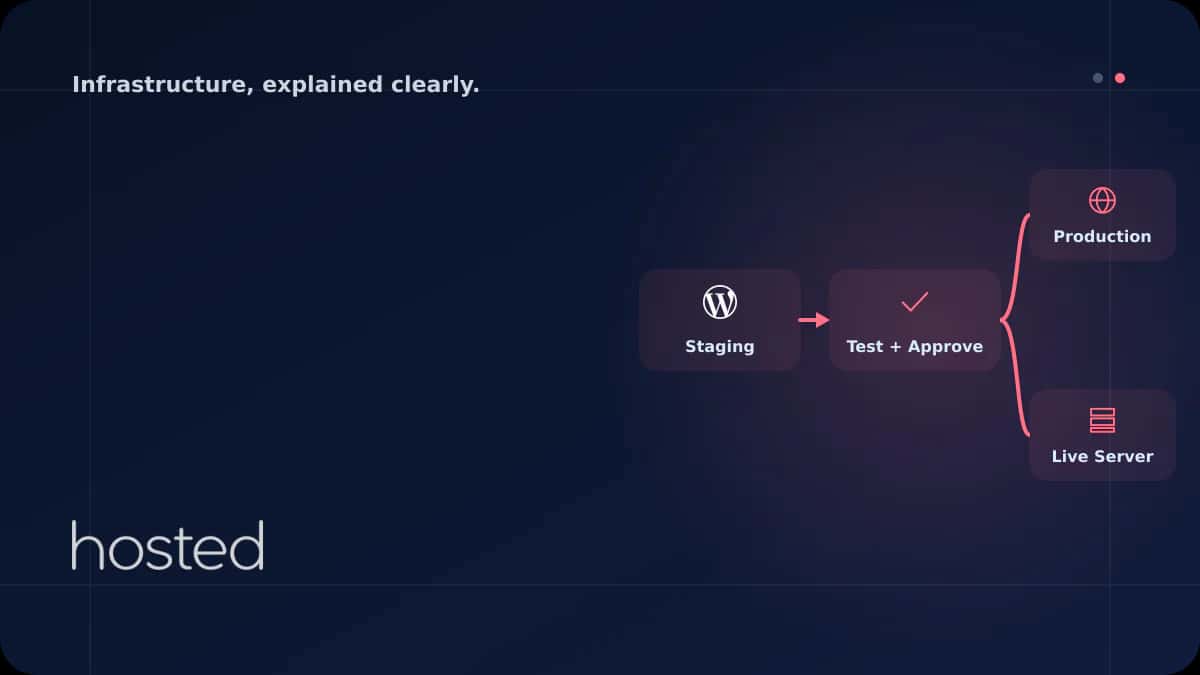
WordPress Staging Ortamı Kurma ve Canlı Siteye Güvenli Geçiş
Canlı WordPress sitenizde doğrudan tema güncellemesi, eklenti kurulumu veya PHP sürüm değişikliği yapmak risklidir - bir hata tüm siteyi çökertebilir. Staging ortamı, canlı sitenizin birebir kopyasını oluşturarak değişiklikleri güvenle test etmenizi sağlar. Bu rehberde WP-CLI ile staging ortamı kurm
Elif Demir
Cloud Solutions Architect
Canlı WordPress sitenizde doğrudan tema güncellemesi, eklenti kurulumu veya PHP sürüm değişikliği yapmak risklidir - bir hata tüm siteyi çökertebilir. Staging ortamı, canlı sitenizin birebir kopyasını oluşturarak değişiklikleri güvenle test etmenizi sağlar. Bu rehberde WP-CLI ile staging ortamı kurma, veritabanı klonlama ve canlı siteye güvenli geçiş adımlarını ele alıyoruz.
Staging Ortamı Nedir ve Neden Gerekli?
Staging ortamı, canlı sitenizin (production) birebir kopyasıdır. Aynı tema, eklentiler, veritabanı yapısı ve içerikle çalışır ancak ziyaretçilere açık değildir. WordPress resmi dokümantasyonunda da önerildiği gibi, her değişiklik önce staging'de test edilmeli, sorun yoksa canlıya aktarılmalıdır.
-
Tema ve Eklenti Güncellemeleri Güncelleme sonrası uyumsuzluk veya beyaz ekran hatası staging'de yakalanır, canlı site etkilenmez.
-
PHP Sürüm Geçişi PHP 8.1'den 8.3'e geçiş öncesi tüm eklentilerin uyumluluğunu staging'de doğrulayabilirsiniz.
-
Tasarım Değişiklikleri Yeni tema veya özel CSS değişikliklerini müşteriye göstermeden önce staging'de önizleyebilirsiniz.
-
WooCommerce Güncellemeleri E-ticaret sitelerinde ödeme akışı, sepet ve checkout süreçlerini staging'de test etmek kritiktir.
WP-CLI ile Staging Ortamı Oluşturma
WP-CLI, WordPress'i komut satırından yönetmenizi sağlayan resmi araçtır. Staging ortamı oluşturmak için dosyaları kopyalayıp, veritabanını klonlayıp, URL'leri değiştirmeniz yeterlidir.
Adım 1: Dosyaları Kopyalama
# Canli site dosyalarini staging dizinine kopyala
rsync -avz --exclude='wp-content/cache' \
  /var/www/production/ /var/www/staging/

# Dosya izinlerini ayarla
chown -R www-data:www-data /var/www/staging/
find /var/www/staging/ -type d -exec chmod 755 {} \;
find /var/www/staging/ -type f -exec chmod 644 {} \;
Adım 2: Veritabanını Klonlama
# Production veritabanini dump al
mysqldump -u root -p production_db > /tmp/production_backup.sql

# Staging veritabani olustur
mysql -u root -p -e "CREATE DATABASE staging_db CHARACTER SET utf8mb4 COLLATE utf8mb4_unicode_ci;"

# Dump'i staging'e yukle
mysql -u root -p staging_db < /tmp/production_backup.sql
Adım 3: wp-config.php ve URL Güncelleme
# wp-config.php'de veritabani adini degistir
sed -i "s/production_db/staging_db/g" /var/www/staging/wp-config.php

# WP-CLI ile URL'leri toplu degistir (serialized data dahil)
cd /var/www/staging
wp search-replace 'https://example.com' 'https://staging.example.com' --all-tables

# Cache temizle
wp cache flush
wp rewrite flush
⚠️ Dikkat: URL değişikliğinde wp search-replace kullanmak zorunludur. Basit SQL REPLACE komutu, WordPress'in serialized verilerini (widget ayarları, tema seçenekleri) bozar. WP-CLI serialized data'yı doğru şekilde deserialize edip tekrar serialize eder.
Staging Ortamını Güvence Altına Alma
Staging ortamı canlı verilerinizin kopyasını içerir - müşteri bilgileri, sipariş verileri ve admin şifreleri dahil. Arama motorlarının indexlemesini ve yetkisiz erişimi engellemek için aşağıdaki önlemleri alın:
server {
    listen 443 ssl http2;
    server_name staging.example.com;
    root /var/www/staging;

    # HTTP Basic Auth ile koruma
    auth_basic "Staging - Yetkili Erisim";
    auth_basic_user_file /etc/nginx/.htpasswd_staging;

    # Arama motorlarini engelle
    add_header X-Robots-Tag "noindex, nofollow" always;

    # ... diger WordPress Nginx ayarlari
}# htpasswd dosyasi olustur
htpasswd -c /etc/nginx/.htpasswd_staging staging_user
# WordPress'te arama motoru indexlemeyi kapat
wp option update blog_public 0 --path=/var/www/staging
# E-posta gonderimini devre disi birak (WooCommerce icin kritik)
wp plugin install disable-emails --activate --path=/var/www/staging💡 İpucu: WooCommerce staging ortamında e-posta gönderimini mutlaka devre dışı bırakın. Aksi halde test siparişleri gerçek müşterilere bildirim gönderebilir. disable-emails eklentisi veya wp-config.php'de SMTP ayarlarını kaldırmak yeterlidir.
Staging'den Canlıya Geçiş
Staging'de testler tamamlandıktan sonra değişiklikleri canlı siteye aktarmanın birkaç yöntemi vardır. Hangi yöntemi seçeceğiniz, değişikliğin kapsamına bağlıdır:
| Değişiklik Türü | Yöntem | Risk Seviyesi |
|---|---|---|
| Tema/eklenti güncellemesi | Dosya rsync + WP-CLI güncelleme | Düşük |
| Veritabanı değişikliği (eklenti ayarları) | Seçici SQL export/import | Orta |
| Tam site yenileme | Tam DB + dosya değişimi | Yüksek |
#!/bin/bash
# Staging'den production'a guvenli gecis

# 1. Production yedegi al
mysqldump -u root -p production_db > /backups/pre-deploy-$(date +%Y%m%d_%H%M%S).sql
tar -czf /backups/files-$(date +%Y%m%d_%H%M%S).tar.gz /var/www/production/

# 2. Bakim modunu ac
wp maintenance-mode activate --path=/var/www/production

# 3. Degisen dosyalari senkronize et
rsync -avz --delete \
  --exclude='wp-config.php' \
  --exclude='wp-content/uploads/' \
  --exclude='wp-content/cache/' \
  --exclude='.htaccess' \
  /var/www/staging/wp-content/themes/ /var/www/production/wp-content/themes/
rsync -avz --delete \
  /var/www/staging/wp-content/plugins/ /var/www/production/wp-content/plugins/

# 4. Cache temizle
wp cache flush --path=/var/www/production
wp rewrite flush --path=/var/www/production

# 5. Bakim modunu kapat
wp maintenance-mode deactivate --path=/var/www/production

echo "Deploy tamamlandi!"
⚠️ Dikkat: wp-config.php, uploads/ dizini ve .htaccess dosyasını staging'den production'a kopyalamayın. Bu dosyalar ortama özeldir - veritabanı bağlantı bilgileri ve URL ayarları farklıdır.
Staging Otomasyonu
Manuel staging oluşturma zaman alıcıdır. Cron job ile haftalık otomatik staging yenileme veya Git tabanlı deployment pipeline kurabilirsiniz:
#!/bin/bash
# Haftalik staging yenileme (cron: 0 3 * * 0)

# Dosyalari senkronize et
rsync -avz --delete --exclude='wp-config.php' \
  /var/www/production/ /var/www/staging/

# Veritabanini yenile
mysqldump -u root -p production_db | mysql -u root -p staging_db

# URL'leri degistir
wp search-replace 'https://example.com' 'https://staging.example.com' \
  --all-tables --path=/var/www/staging

# Guvenlik onlemleri
wp option update blog_public 0 --path=/var/www/staging
wp cache flush --path=/var/www/staging
WordPress hosting altyapınız için Hosted Cloud hosting çözümlerini inceleyebilirsiniz. Staging ortamı için ayrı bir bulut sunucu kullanmak, canlı sitenizin performansını etkilemeden test yapmanızı sağlar.
Sıkça Sorulan Sorular
Staging ortamı aynı sunucuda mı olmalı?
Aynı sunucuda olabilir ancak ayrı sunucu daha güvenlidir. Aynı sunucuda staging, production'ın CPU ve RAM kaynaklarını paylaşır. Yoğun test senaryolarında canlı sitenin performansı düşebilir.
Staging'de SSL sertifikası gerekli mi?
Evet, mixed content hatalarını ve HTTPS yönlendirme sorunlarını doğru test edebilmek için staging'de de SSL kullanılmalıdır. Let's Encrypt ile ücretsiz sertifika alabilirsiniz.
Multisite kurulumda staging nasıl yapılır?
Multisite'ta wp search-replace komutunu --network parametresiyle çalıştırın. Her alt sitenin URL'si ayrı ayrı güncellenir. wp_blogs ve wp_site tablolarını da kontrol edin.
Staging ortamını ne sıklıkla yenilemeliyim?
Aktif geliştirme dönemlerinde haftalık, bakım dönemlerinde aylık yenileme yeterlidir. E-ticaret sitelerinde her büyük güncelleme öncesi taze bir staging oluşturmak en güvenli yaklaşımdır.
Eklenti ile staging oluşturabilir miyim?
WP Staging veya Jetstaging gibi eklentiler tek tıkla staging oluşturur. Ancak büyük sitelerde (10GB+ veritabanı) bu eklentiler zaman aşımına uğrayabilir. WP-CLI yöntemi daha güvenilir ve kontrol edilebilirdir.
Sonuç
WordPress staging ortamı, canlı sitenizi riske atmadan güncelleme, test ve geliştirme yapmanızı sağlayan temel bir altyapı bileşenidir. WP-CLI ile staging oluşturma, wp search-replace ile URL güncelleme ve otomatik yenileme script'leri ile profesyonel bir geliştirme iş akışı kurabilirsiniz. Her değişikliği önce staging'de test edin, yedek alın ve sonra canlıya aktarın.
WordPress Siteniz İçin Profesyonel Hosting
Hosted Cloud'un optimize edilmiş WordPress hosting altyapısı ile sitenizi hızlı ve güvenli çalıştırın. Staging desteği dahil.
WordPress Hosting Planlarını İncele →Elif Demir
Cloud Solutions Architect
Kurumsal bulut geçiş projeleri ve hibrit altyapı tasarımı konusunda uzman. AWS, Azure ve özel bulut ortamlarında 8 yıllık deneyime sahiptir.
Yorumlar yakında