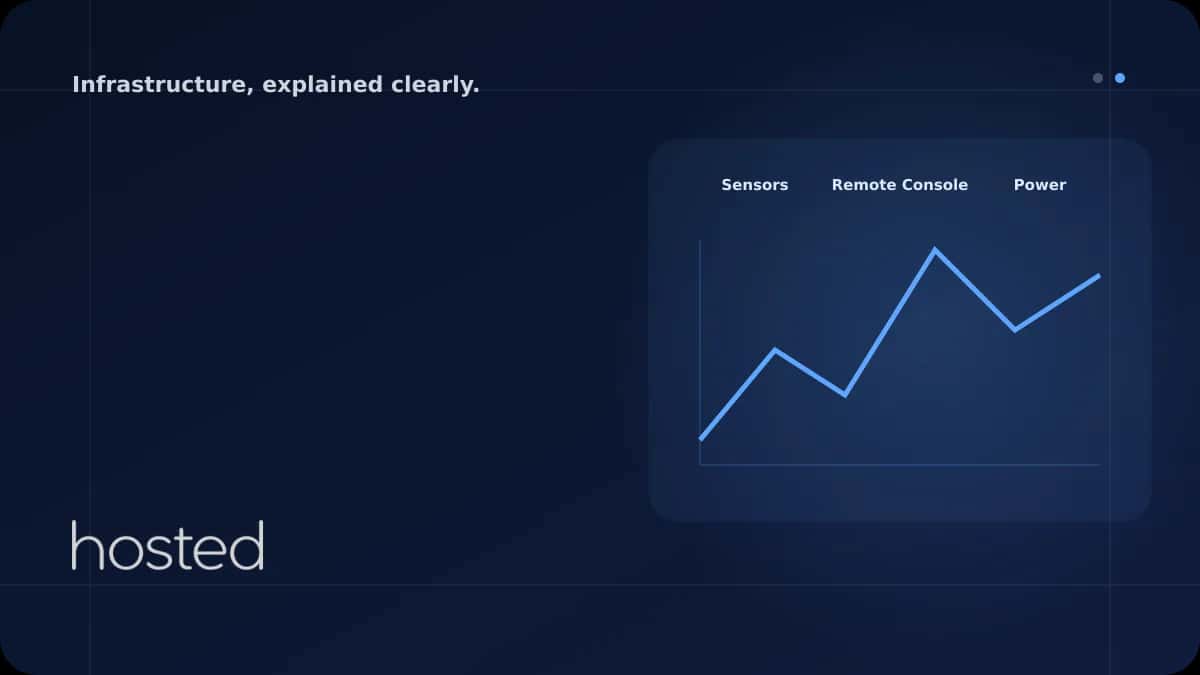
IPMI ve iDRAC ile Uzaktan Sunucu Yönetimi
IPMI ve iDRAC nedir? Fiziksel sunucuları uzaktan yönetme, KVM konsol, donanım izleme ve güvenlik rehberi.
Elif Demir
Cloud Solutions Architect
Fiziksel sunucunuz kilitlendi, işletim sistemi yanıt vermiyor ve SSH bağlantısı kurulamıyor - veri merkezine fiziksel erişiminiz yoksa ne yaparsınız? IPMI ve iDRAC gibi out-of-band (OOB) yönetim teknolojileri, sunucunuzu işletim sisteminden bağımsız olarak uzaktan yönetmenizi sağlar: güç açma/kapama, BIOS yapılandırması, donanım sensör izleme ve uzak konsol erişimi. Bu rehberde OOB yönetim kavramını, IPMI/iDRAC/iLO farklarını ve pratik kullanım adımlarını ele alıyoruz.
Out-of-Band Yönetim Nedir?
Sunucu yönetimi iki temel kategoriye ayrılır: in-band (işletim sistemi üzerinden - SSH, RDP) ve out-of-band (OOB - işletim sisteminden bağımsız, donanım seviyesinde). In-band yönetim, OS çalıştığı sürece işe yarar; ancak kernel panic, disk arızası veya ağ yapılandırma hatası gibi durumlarda erişim tamamen kesilir.
OOB yönetim, anakart üzerindeki bağımsız bir mikrodenetleyici olan BMC (Baseboard Management Controller) aracılığıyla çalışır. BMC'nin kendi işlemcisi, belleği ve ağ bağlantısı vardır; sunucu kapalıyken bile (standby güç yeterlidir) aktiftir. Bu sayede sunucuyu uzaktan açıp kapatabilir, BIOS'a erişebilir, sensör verilerini okuyabilir ve sanal konsol üzerinden işletim sistemi kurulumu yapabilirsiniz.
💡 İpucu: OOB yönetim, veri merkezinde fiziksel erişiminiz olmayan colocated veya kiralık sunucularda kritik öneme sahiptir. Sunucu yanıt vermediğinde veri merkezine müdahale talebi açmak yerine, OOB arayüzü üzerinden saniyeler içinde müdahale edebilirsiniz.
IPMI, iDRAC ve iLO Karşılaştırması
IPMI (Intelligent Platform Management Interface), Intel tarafından tanımlanan açık bir standarttır (güncel sürüm: IPMI 2.0). Tüm büyük sunucu üreticileri bu standardı destekler. iDRAC (Integrated Dell Remote Access Controller) ve iLO (Integrated Lights-Out) ise sırasıyla Dell ve HPE'nin IPMI üzerine inşa ettiği, ek özellikler sunan tescilli çözümlerdir. Supermicro gibi üreticiler ise genellikle standart IPMI web arayüzü kullanır.
| Özellik | IPMI 2.0 (Standart) | Dell iDRAC 9 | HPE iLO 6 |
|---|---|---|---|
| Tür | Açık standart (Intel) | Tescilli (Dell) | Tescilli (HPE) |
| Web Arayüzü | Temel (üreticiye göre değişir) | Gelişmiş HTML5 konsol | Gelişmiş HTML5 konsol |
| Uzak Konsol | SOL (Serial over LAN) | Virtual Console (HTML5/Java) | Integrated Remote Console |
| Sanal Medya | Sınırlı | ISO mount, NFS/CIFS paylaşımı | ISO mount, URL-based media |
| API Desteği | ipmitool CLI | Redfish REST API + racadm CLI | Redfish REST API + iLO RESTful API |
| Lisans Modeli | Ücretsiz (donanımla gelir) | Express (ücretsiz) / Enterprise (ücretli) | Standard (ücretsiz) / Advanced (ücretli) |
| Firmware Güncelleme | Manuel | Otomatik (Dell Repository) | Otomatik (SPP) |
Kısaca: IPMI temel donanım yönetimi için yeterlidir; iDRAC ve iLO ise gelişmiş web arayüzü, otomasyon API'leri ve firmware yönetimi gibi ek katmanlar sunar. Hangi çözümü kullanacağınız sunucu üreticinize bağlıdır - Dell sunucularda iDRAC, HPE sunucularda iLO, Supermicro ve diğerlerinde standart IPMI arayüzü gelir. Daha fazla teknik detay için Intel IPMI spesifikasyonuna göz atabilirsiniz.
Temel Özellikler ve Kullanım Alanları
OOB yönetim araçlarının sunduğu temel yetenekler, fiziksel sunucu operasyonlarının neredeyse tamamını uzaktan gerçekleştirmenize olanak tanır. İşte en kritik özellikler:
-
Güç Kontrolü (Power Management) Sunucuyu uzaktan açma, kapatma, yeniden başlatma ve güç döngüsü (power cycle) uygulama. OS kilitlendiğinde hard reset yapabilirsiniz.
-
Uzak Konsol (Remote Console / KVM) Sunucunun ekran çıktısını tarayıcı üzerinden görüntüleme ve klavye/fare kontrolü. BIOS ayarlarına erişim, OS kurulumu ve boot sorunlarını teşhis etme imkânı sağlar.
-
Donanım Sensör İzleme (Sensor Monitoring) CPU/sistem sıcaklığı, fan hızları, voltaj seviyeleri, güç tüketimi ve disk durumu gibi donanım metriklerini gerçek zamanlı izleme. Eşik değerleri aşıldığında otomatik uyarı gönderir.
-
Sanal Medya (Virtual Media) Uzaktan ISO dosyası bağlayarak işletim sistemi kurulumu veya kurtarma diski boot etme. Fiziksel USB bellek takmaya gerek kalmaz.
-
Olay Günlükleri (SEL - System Event Log) Donanım olaylarını (disk arızası, bellek hatası, sıcaklık uyarısı, güç kesintisi) kalıcı olarak kaydeder. Sorun tespiti ve kök neden analizi için kritik veri kaynağıdır.
ipmitool ile Komut Satırı Yönetimi
ipmitool, IPMI uyumlu tüm sunucularda çalışan standart komut satırı aracıdır. Hem yerel (sunucu üzerinden) hem de uzak (ağ üzerinden, -I lanplus parametresiyle) kullanılabilir. Aşağıda en sık kullanılan komutları bulabilirsiniz.
Kurulum ve Bağlantı
# Debian/Ubuntu kurulumu
sudo apt install ipmitool -y

# RHEL/CentOS kurulumu
sudo dnf install ipmitool -y

# Yerel kullanım (sunucu üzerinde)
sudo ipmitool chassis status

# Uzak sunucuya bağlanma (LAN üzerinden)
ipmitool -I lanplus -H 10.0.1.100 -U admin -P parola chassis status
Güç Kontrolü Komutları
# Mevcut güç durumunu sorgula
ipmitool -I lanplus -H 10.0.1.100 -U admin -P parola power status
# Çıktı: Chassis Power is on

# Sunucuyu kapat (graceful shutdown değil - hard power off)
ipmitool -I lanplus -H 10.0.1.100 -U admin -P parola power off

# Sunucuyu aç
ipmitool -I lanplus -H 10.0.1.100 -U admin -P parola power on

# Güç döngüsü (power cycle - kapat ve tekrar aç)
ipmitool -I lanplus -H 10.0.1.100 -U admin -P parola power cycle

# Hard reset (OS yanıt vermiyorsa)
ipmitool -I lanplus -H 10.0.1.100 -U admin -P parola power reset
⚠️ Önemli Uyarı: power off ve power reset komutları işletim sistemine sinyal göndermez - doğrudan donanım seviyesinde güç keser. Veri kaybını önlemek için önce OS üzerinden shutdown deneyin; yalnızca OS yanıt vermediğinde IPMI güç komutlarını kullanın.
Sensör ve Olay Günlüğü Komutları
# Tüm sensörleri listele (sıcaklık, fan, voltaj)
ipmitool -I lanplus -H 10.0.1.100 -U admin -P parola sensor list

# Belirli bir sensörü sorgula
ipmitool -I lanplus -H 10.0.1.100 -U admin -P parola sensor get "CPU Temp"

# System Event Log (SEL) kayıtlarını görüntüle
ipmitool -I lanplus -H 10.0.1.100 -U admin -P parola sel list

# SEL bilgilerini özetle (toplam kayıt, doluluk)
ipmitool -I lanplus -H 10.0.1.100 -U admin -P parola sel info

# SEL günlüğünü temizle (doluysa yeni olaylar kaydedilmez)
ipmitool -I lanplus -H 10.0.1.100 -U admin -P parola sel clear
Ağ ve Kullanıcı Yapılandırması
# BMC ağ yapılandırmasını görüntüle
sudo ipmitool lan print 1

# Statik IP ata
sudo ipmitool lan set 1 ipsrc static
sudo ipmitool lan set 1 ipaddr 10.0.1.100
sudo ipmitool lan set 1 netmask 255.255.255.0
sudo ipmitool lan set 1 defgw ipaddr 10.0.1.1

# Kullanıcıları listele
sudo ipmitool user list 1

# Kullanıcı parolasını değiştir (user ID 2)
sudo ipmitool user set password 2 "YeniGucluParola123!"

# BMC'yi yeniden başlat (yapılandırma değişikliklerini uygulamak için)
sudo ipmitool mc reset warm
Tüm ipmitool komutlarının detaylı açıklamaları için ipmitool man sayfasına başvurabilirsiniz. Hosted Cloud fiziksel sunucularında IPMI erişimi standart olarak sağlanmaktadır.
OOB Yönetim Güvenliği
BMC/IPMI arayüzleri, sunucunuza donanım seviyesinde tam erişim sağladığından, güvenlik açısından en kritik saldırı yüzeylerinden biridir. Tarihsel olarak birçok BMC uygulamasında ciddi güvenlik açıkları tespit edilmiştir. Aşağıdaki önlemleri mutlaka uygulayın:
-
Ayrı Yönetim VLAN'ı Kullanın BMC trafiğini üretim ağından fiziksel veya mantıksal olarak izole edin. Dedicated management port varsa kullanın; yoksa ayrı bir VLAN yapılandırın. BMC arayüzü asla internete açık olmamalıdır.
-
Varsayılan Parolaları Hemen Değiştirin Birçok BMC fabrika çıkışında "admin/admin" veya "ADMIN/ADMIN" gibi bilinen varsayılan kimlik bilgileriyle gelir. İlk kurulumda güçlü, benzersiz parolalar atayın. Mümkünse varsayılan "admin" kullanıcısını devre dışı bırakıp yeni bir yönetici hesabı oluşturun.
-
Firmware'i Güncel Tutun BMC firmware güncellemeleri güvenlik yamaları içerir. Dell iDRAC ve HPE iLO için üretici güncelleme kanallarını düzenli kontrol edin. Supermicro BMC için üreticinin destek sayfasından firmware indirin.
-
Kullanılmayan Servisleri Kapatın IPMI over LAN, SOL (Serial over LAN), SNMP ve HTTP gibi kullanmadığınız protokolleri devre dışı bırakın. Web arayüzünde HTTPS zorunlu kılın. IPMI 1.5 yerine şifreli iletişim sunan IPMI 2.0 (lanplus) kullanın.
-
Erişimi VPN veya Bastion Host Üzerinden Sağlayın OOB yönetim ağına doğrudan erişim yerine VPN tüneli veya bastion (jump) host üzerinden bağlanın. Bu katman, yetkisiz erişim riskini önemli ölçüde azaltır. Daha fazla bilgi için SSH güçlendirme rehberimize göz atın.
BMC güvenliği hakkında kapsamlı bir değerlendirme için Rapid7'nin IPMI güvenlik rehberini incelemenizi öneririz.
Sıkça Sorulan Sorular
IPMI ile iDRAC arasındaki fark nedir?
IPMI, Intel tarafından tanımlanan açık bir standarttır ve tüm üreticiler tarafından desteklenir. iDRAC ise Dell'in IPMI üzerine inşa ettiği tescilli bir çözümdür; gelişmiş web arayüzü, Redfish API, otomatik firmware güncelleme ve Lifecycle Controller gibi ek özellikler sunar.
IPMI erişimi için sunucunun açık olması gerekir mi?
Hayır. BMC, anakart üzerinde bağımsız çalışan bir mikrodenetleyicidir ve standby güç (güç kablosu takılı olduğu sürece) ile aktif kalır. Sunucu tamamen kapalıyken bile IPMI üzerinden güç açma, sensör okuma ve ağ yapılandırması yapabilirsiniz.
IPMI arayüzünü internete açmak güvenli mi?
Kesinlikle hayır. BMC arayüzleri tarihsel olarak ciddi güvenlik açıkları barındırmıştır. IPMI/iDRAC/iLO erişimini yalnızca izole bir yönetim VLAN'ı üzerinden ve VPN/bastion host arkasından sağlayın. İnternete doğrudan açık BMC, sunucunuzun tam kontrolünü kaybetmenize yol açabilir.
Hosted Cloud fiziksel sunucularında IPMI erişimi sağlanıyor mu?
Evet. Hosted Cloud dedicated sunucularında IPMI/iDRAC erişimi standart olarak sunulmaktadır. Sunucu tesliminde OOB yönetim bilgileri (IP, kullanıcı adı, parola) tarafınıza iletilir ve güvenli bir yönetim ağı üzerinden erişim sağlanır.
iDRAC Express ve Enterprise arasındaki fark nedir?
iDRAC Express ücretsiz olarak gelir ve temel izleme, güç kontrolü ve uyarı özelliklerini sunar. iDRAC Enterprise (ücretli lisans) ise HTML5 uzak konsol, sanal medya, vFlash SD kart desteği, dizin servisi entegrasyonu (LDAP/AD) ve gelişmiş otomasyon API'leri ekler.
Sonuç
IPMI ve iDRAC gibi out-of-band yönetim araçları, fiziksel sunucu operasyonlarında vazgeçilmezdir. İşletim sistemi yanıt vermediğinde uzaktan müdahale, donanım sensörlerini proaktif izleme, uzak konsol üzerinden OS kurulumu ve olay günlükleriyle kök neden analizi - tüm bunlar OOB yönetim olmadan mümkün değildir. Güvenlik tarafında ise BMC arayüzlerini izole bir ağda tutmak, varsayılan parolaları değiştirmek ve firmware'i güncel tutmak temel adımlardır. Yedekleme stratejileri ve RAID yapılandırması ile birlikte OOB yönetim, sunucu altyapınızın güvenilirliğini en üst düzeye çıkarır.
IPMI Erişimli Fiziksel Sunucu
Hosted Cloud dedicated sunucularında IPMI/iDRAC erişimi, NVMe SSD depolama, RAID yapılandırması ve 7/24 teknik destek standart olarak sunulmaktadır.
Fiziksel Sunucu Planlarını İncele →Elif Demir
Cloud Solutions Architect
Kurumsal bulut geçiş projeleri ve hibrit altyapı tasarımı konusunda uzman. AWS, Azure ve özel bulut ortamlarında 8 yıllık deneyime sahiptir.
Yorumlar yakında