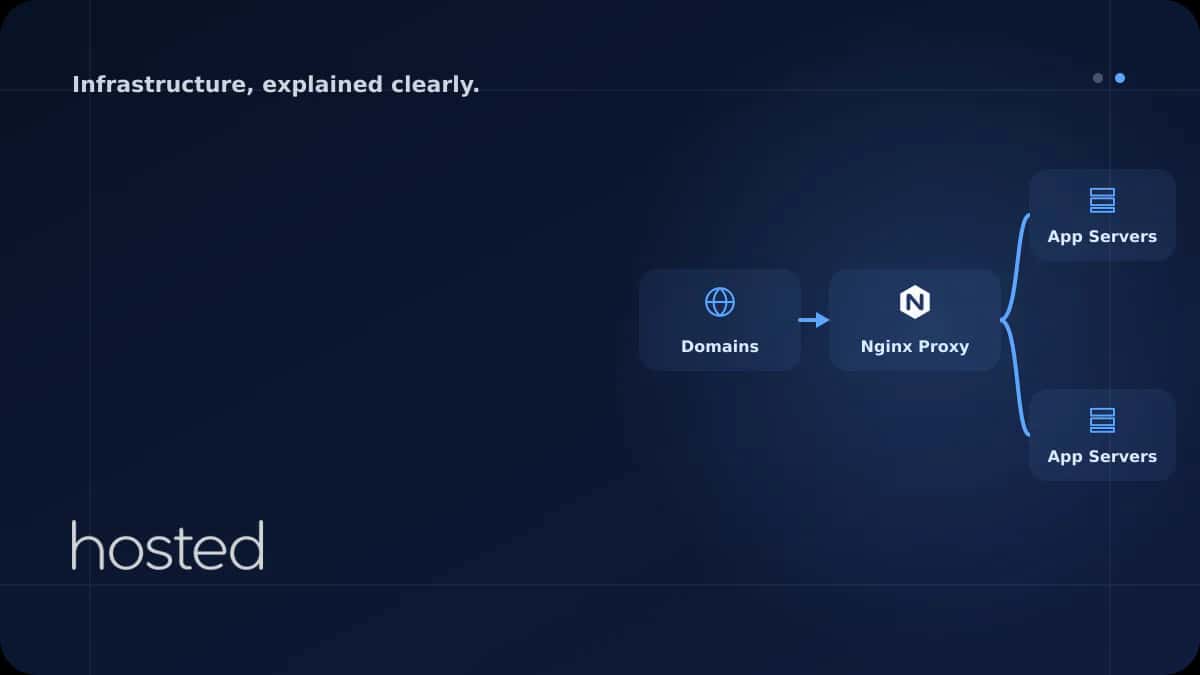
Nginx Reverse Proxy Kurulumu ve Yapılandırması
Nginx reverse proxy nedir, nasıl kurulur? SSL termination, load balancing, caching ve güvenlik yapılandırması.
Ahmet Yılmaz
Kıdemli Altyapı Mühendisi
Her proje için ayrı sunucu kiralamak hem maliyetli hem de yönetim açısından verimsizdir. Nginx reverse proxy ile tek bir sunucu üzerinde birden fazla domain'i farklı uygulamalara (Node.js, PHP, Python) yönlendirebilir, SSL sertifikalarını merkezi olarak yönetebilir ve basit yük dengeleme yapabilirsiniz. Bu rehberde sıfırdan Nginx reverse proxy kurulumunu, server block yapılandırmasını ve Let's Encrypt SSL entegrasyonunu ele alıyoruz.
Reverse Proxy Nedir?
Reverse proxy, istemci (tarayıcı) ile arka plandaki uygulama sunucuları arasında duran bir aracıdır. İstemci doğrudan uygulamaya bağlanmaz; Nginx gelen isteği alır, hangi uygulamaya yönlendireceğine karar verir ve yanıtı istemciye döner.
-
Tek IP, çoklu domain Nginx, Host header'ına bakarak aynı IP üzerinden gelen istekleri farklı uygulamalara yönlendirir.
-
SSL terminasyonu SSL/TLS şifreleme ve çözümleme Nginx'te yapılır; arka plan uygulamaları HTTP ile çalışır, bu da yapılandırmayı basitleştirir.
-
Güvenlik katmanı Arka plan uygulamaları doğrudan internete açılmaz. Nginx rate limiting, IP kısıtlama ve header filtreleme yapabilir.
Nginx Kurulumu ve Temel Yapılandırma
# Nginx kurulumu (Ubuntu/Debian)
sudo apt update
sudo apt install nginx -y

# Servisi başlat ve etkinleştir
sudo systemctl enable --now nginx

# Firewall'da HTTP ve HTTPS'i aç
sudo ufw allow 'Nginx Full'

# Yapılandırma testi
sudo nginx -t
Server Block ile Çoklu Domain Yönetimi
Her domain için ayrı bir server block dosyası oluşturun. Nginx, gelen isteğin Host header'ına bakarak doğru server block'u seçer.
Örnek 1: Node.js Uygulaması (port 3000)
server {
    listen 80;
    server_name app1.example.com;

    location / {
        proxy_pass http://localhost:3000;
        proxy_http_version 1.1;
        proxy_set_header Upgrade $http_upgrade;
        proxy_set_header Connection 'upgrade';
        proxy_set_header Host $host;
        proxy_set_header X-Real-IP $remote_addr;
        proxy_set_header X-Forwarded-For $proxy_add_x_forwarded_for;
        proxy_set_header X-Forwarded-Proto $scheme;
        proxy_cache_bypass $http_upgrade;
    }
}
Örnek 2: PHP Uygulaması (WordPress)
server {
    listen 80;
    server_name blog.example.com;
    root /var/www/blog;
    index index.php index.html;

    location / {
        try_files $uri $uri/ /index.php?$args;
    }

    location ~ \.php$ {
        fastcgi_pass unix:/run/php/php8.3-fpm.sock;
        fastcgi_param SCRIPT_FILENAME $document_root$fastcgi_script_name;
        include fastcgi_params;
    }
}# Siteleri etkinleştir
sudo ln -s /etc/nginx/sites-available/app1.example.com /etc/nginx/sites-enabled/
sudo ln -s /etc/nginx/sites-available/blog.example.com /etc/nginx/sites-enabled/
# Yapılandırmayı test et ve yeniden yükle
sudo nginx -t
sudo systemctl reload nginxLet's Encrypt ile SSL Sertifikası
Let's Encrypt, ücretsiz SSL/TLS sertifikası sağlar. Certbot aracı ile Nginx yapılandırmasını otomatik olarak günceller.
# Certbot kurulumu
sudo apt install certbot python3-certbot-nginx -y

# Tüm domainler için SSL sertifikası al
sudo certbot --nginx -d app1.example.com -d blog.example.com

# Otomatik yenilemeyi test et
sudo certbot renew --dry-run

# Certbot otomatik yenileme cron'u zaten kurulur:
# /etc/cron.d/certbot veya systemd timer
💡 İpucu: Certbot, Nginx server block'larını otomatik olarak HTTPS'e yönlendirecek şekilde günceller. Yeni bir domain eklediğinizde önce HTTP server block'unu oluşturun, ardından certbot --nginx -d yeni-domain.com çalıştırın.
Upstream ve Yük Dengeleme
Aynı uygulamanın birden fazla instance'ı çalışıyorsa, Nginx upstream bloğu ile basit yük dengeleme yapabilirsiniz:
upstream app_backend {
    # Round-robin (varsayılan)
    server localhost:3001;
    server localhost:3002;
    server localhost:3003;
}

server {
    listen 80;
    server_name app.example.com;

    location / {
        proxy_pass http://app_backend;
        proxy_set_header Host $host;
        proxy_set_header X-Real-IP $remote_addr;
    }
}
Nginx reverse proxy yapılandırması, Hosted Cloud bulut sunucularında kolayca uygulanabilir. Birden fazla proje barındırıyorsanız, SSH güçlendirme rehberimizle sunucu güvenliğinizi de sağlamlaştırmanızı öneririz. Nginx resmi dokümantasyonu için proxy modülü referansına bakabilirsiniz.
Sıkça Sorulan Sorular
Tek sunucuda kaç domain barındırabilirim?
Nginx açısından pratik bir sınır yoktur; yüzlerce server block tanımlayabilirsiniz. Sınırlayıcı faktör sunucunuzun CPU, RAM ve bant genişliği kapasitesidir. Her uygulamanın kaynak tüketimini izleyerek kapasite planlaması yapın.
Nginx mi Apache mi kullanmalıyım?
Reverse proxy ve statik dosya sunumu için Nginx genellikle daha performanslıdır. Nginx event-driven mimarisi sayesinde daha az bellek kullanır ve daha fazla eşzamanlı bağlantı yönetir. Apache ise .htaccess desteği gereken eski uygulamalar için tercih edilebilir.
WebSocket bağlantıları reverse proxy üzerinden çalışır mı?
Evet, proxy_set_header Upgrade $http_upgrade ve proxy_set_header Connection 'upgrade' header'larını eklemeniz yeterlidir. Bu ayarlar yukarıdaki Node.js örneğinde zaten mevcuttur.
Arka plan uygulaması çökerse ne olur?
Nginx 502 Bad Gateway hatası döner. Bunu önlemek için: (1) PM2 veya systemd ile uygulamayı otomatik yeniden başlatın, (2) upstream bloğunda birden fazla instance tanımlayın, (3) proxy_next_upstream direktifi ile başarısız istekleri diğer instance'a yönlendirin.
Sonuç
Nginx reverse proxy, tek sunucuda birden fazla domain ve uygulamayı verimli şekilde yönetmenin standart yoludur. Her domain için ayrı server block oluşturun, Let's Encrypt ile SSL sertifikalarını otomatikleştirin ve gerektiğinde upstream bloğu ile yük dengeleme yapın. Yapılandırma değişikliklerinden önce nginx -t ile test etmeyi unutmayın.
Tüm Projelerinizi Tek Sunucuda Yönetin
Hosted Cloud bulut sunucuları ile Nginx reverse proxy kurarak tüm domain'lerinizi tek noktadan yönetin. NVMe SSD ve yüksek bant genişliği ile performanstan ödün vermeyin.
Bulut Sunucu Planlarını İncele →Ahmet Yılmaz
Kıdemli Altyapı Mühendisi
10 yılı aşkın bulut altyapısı ve DevOps deneyimiyle Hosted Cloud'un teknik ekibinde yer almaktadır. Kubernetes, Terraform ve yüksek erişilebilirlik mimarileri üzerine uzmanlaşmıştır.
Yorumlar yakında