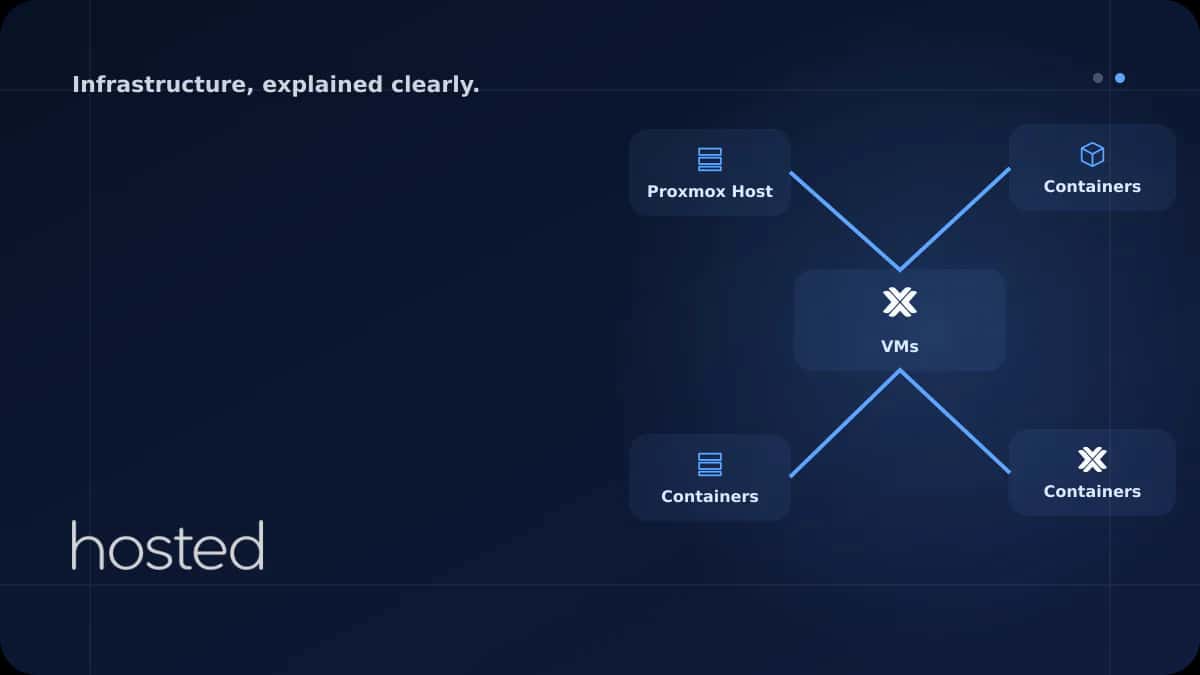
Proxmox VE Bare Metal Virtualization Setup Guide
Proxmox VE setup on bare metal server: creating KVM virtual machines and LXC containers, network configuration, and backup steps.
Can Kaya
Security Specialist
Running multiple isolated environments on a single physical server - development, testing, production, or different client projects - is possible with Proxmox VE. Proxmox is an open-source virtualization platform that lets you manage KVM-based virtual machines and LXC containers from a single web interface. In this guide, we cover Proxmox installation on a bare metal server, network configuration, and the steps to create your first VM/container.
What Is Proxmox VE?
Proxmox Virtual Environment (VE) is a Debian-based open-source server virtualization management platform. It combines two virtualization technologies:
KVM (Virtual Machine)
Full hardware virtualization. You can run Windows, Linux, or any OS. Each VM has its own kernel. Provides full isolation.
LXC (Container)
OS-level virtualization. Shares the host kernel with very low overhead. Ideal for Linux environments. Starts in seconds.
Compared to VMware ESXi or Hyper-V, Proxmox's advantages include: being free and open source, ZFS support, a web-based management interface, and cluster/HA (High Availability) features that don't require licensing.
Hardware Requirements
-
CPU: VT-x/AMD-V support (required) Hardware virtualization support is required for KVM virtual machines. Verify that Intel VT-x or AMD-V is enabled in BIOS/UEFI.
-
RAM: Minimum 4 GB, recommended 16 GB+ The Proxmox host uses ~1 GB. The rest is distributed to VMs/containers. If you plan to use ZFS, additional RAM is needed (approximately ~1 GB per GB for ZFS ARC cache).
-
Disk: NVMe SSD recommended A separate small SSD (128 GB+) for the OS, NVMe SSD for VM storage. ZFS mirror or RAID configuration ensures data safety.
-
Network: At least 1 Gbps NIC If you'll be running multiple VMs, 10 Gbps or bonding (LACP) configuration is recommended. A separate management port for IPMI/iDRAC is an advantage.
Installation Steps
Proxmox VE is installed from its own ISO - it can also be added on top of an existing Debian installation, but a clean install is recommended. You can remotely mount the ISO via virtual media through IPMI/iDRAC.
# Download ISO (official site: proxmox.com/downloads)
wget https://enterprise.proxmox.com/iso/proxmox-ve_8.3-1.iso

# Verify SHA256
sha256sum proxmox-ve_8.3-1.iso

# Write to USB (caution: select the correct device!)
sudo dd if=proxmox-ve_8.3-1.iso of=/dev/sdX bs=4M status=progress oflag=sync
Key points to note during the installation wizard:
-
File System Selection ext4 is simple and reliable. ZFS offers snapshot, checksum, and mirror support but requires more RAM. ZFS mirror is recommended for production environments.
-
Network Configuration Assign a static IP. The hostname should be in FQDN format (e.g., pve1.hosted.cloud). DNS servers must be entered correctly.
After installation is complete, you can access the web interface at https://SERVER_IP:8006.
Network Configuration
Proxmox uses Linux bridges for VM and container network access. The default installation creates a bridge named vmbr0 that is connected to the physical NIC.
# Physical interface
auto eno1
iface eno1 inet manual

# Main bridge (VMs connect to this bridge)
auto vmbr0
iface vmbr0 inet static
    address  10.0.1.10/24
    gateway  10.0.1.1
    bridge-ports eno1
    bridge-stp off
    bridge-fd 0

# Internal network bridge (isolated inter-VM communication)
auto vmbr1
iface vmbr1 inet static
    address  192.168.100.1/24
    bridge-ports none
    bridge-stp off
    bridge-fd 0
💡 Tip: Create a second bridge (vmbr1) to isolate traffic between the database server and application server. Communication over this internal network provides advantages in both security and performance.
Creating Your First Virtual Machine and Container
KVM Virtual Machine (CLI)
# Upload ISO to Proxmox storage
# Web UI: Datacenter → Storage → local → ISO Images → Upload

# Create VM via CLI (ID: 100)
qm create 100 \
  --name web-server \
  --memory 4096 \
  --cores 4 \
  --sockets 1 \
  --net0 virtio,bridge=vmbr0 \
  --scsi0 local-lvm:32 \
  --cdrom local:iso/ubuntu-24.04-server.iso \
  --boot order=scsi0;ide2 \
  --ostype l26

# Start the VM
qm start 100

# Connect to console (can also be done via web UI)
qm terminal 100
LXC Container
# Download template (Debian 12)
pveam update
pveam download local debian-12-standard_12.7-1_amd64.tar.zst

# Create container (ID: 200)
pct create 200 local:vztmpl/debian-12-standard_12.7-1_amd64.tar.zst \
  --hostname db-server \
  --memory 2048 \
  --cores 2 \
  --rootfs local-lvm:16 \
  --net0 name=eth0,bridge=vmbr0,ip=10.0.1.20/24,gw=10.0.1.1 \
  --password

# Start and enter the container
pct start 200
pct enter 200
LXC containers consume far fewer resources than KVM - you can run 3-5 times more isolated environments on the same hardware. Prefer LXC for Linux workloads (web server, database, cache); use KVM for Windows or situations requiring a different kernel.
Backup and Snapshot
Proxmox offers built-in backup and snapshot features. Creating a regular backup schedule is the most fundamental protection against VM/container loss.
# Take a VM snapshot (instant state capture)
qm snapshot 100 pre-update --description "Before update"

# Roll back to snapshot
qm rollback 100 pre-update

# Take a full backup (compressed)
vzdump 100 --compress zstd --storage local --mode snapshot

# Container backup
vzdump 200 --compress zstd --storage local --mode snapshot

# Restore from backup
qmrestore /var/lib/vz/dump/vzdump-qemu-100-*.vma.zst 101
You can create scheduled backup plans from the web interface under Datacenter → Backup. Taking backups to a different server or NFS share ensures compliance with the 3-2-1 backup rule.
Frequently Asked Questions
Is Proxmox free?
Yes, Proxmox VE is completely open source and free. The paid subscription only includes enterprise repository access and official support. All features can be used for free with the community repository.
Should I use KVM or LXC?
Prefer LXC for Linux workloads - it consumes fewer resources and starts faster. Use KVM if you need to run Windows or require full kernel isolation. You can use both on the same host.
What is the difference between Proxmox and VMware ESXi?
Proxmox is open source and free; ESXi requires a paid license (especially with vCenter). Proxmox supports both KVM and LXC, and ZFS comes built-in. ESXi has a broader enterprise ecosystem, but licensing policies have changed following the Broadcom acquisition.
How does High Availability (HA) work in Proxmox?
HA is enabled by adding at least 3 Proxmox nodes to a cluster. When a node fails, its VMs/containers are automatically migrated to other nodes. Shared storage (Ceph, NFS, iSCSI) is required.
Conclusion
Proxmox VE transforms your bare metal server into an efficient virtualization platform. You can run fully isolated virtual machines with KVM, lightweight containers with LXC, ensure data safety with ZFS, and manage the entire environment from a web interface. Being free and open source makes it a strong option for teams looking for a VMware alternative.
Virtualization-Ready Bare Metal Server
Set up your Proxmox environment right away with VT-x/AMD-V supported processors, NVMe SSD, and IPMI access on Hosted Cloud dedicated servers.
View Dedicated Server Plans →Can Kaya
Security Specialist
CISSP-certified security expert creating content on cybersecurity, DDoS protection, and server hardening.
Comments coming soon