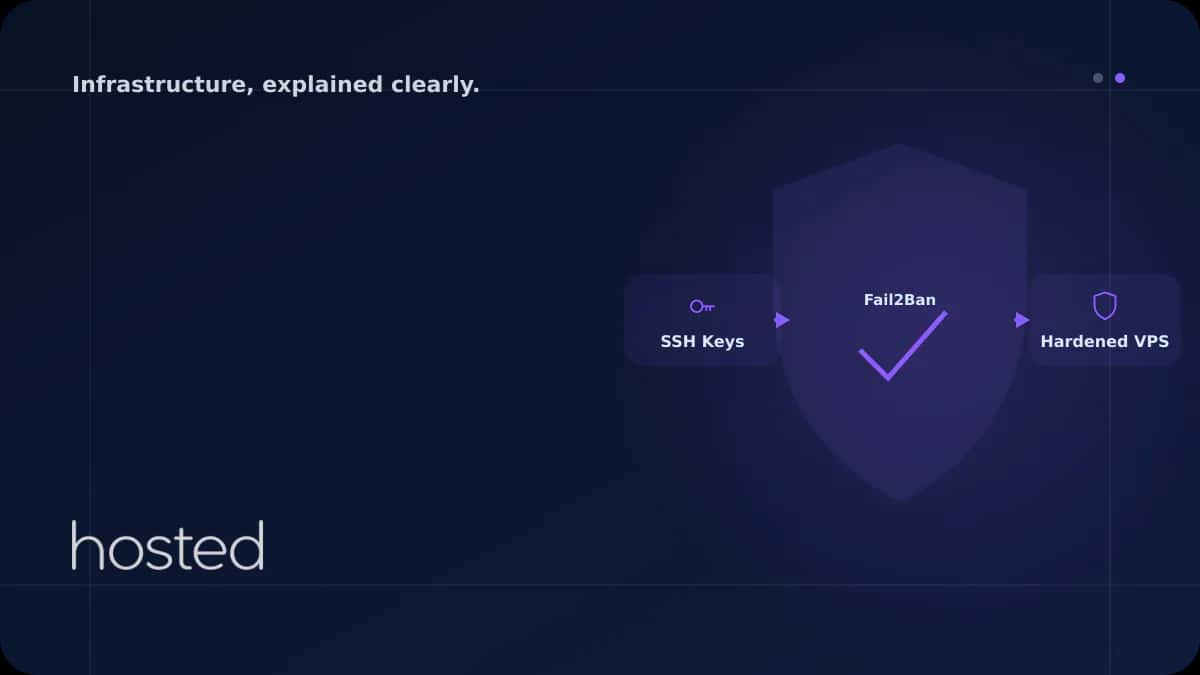
Linux VPS'te SSH Güçlendirme Rehberi
Linux VPS sunucunuzda SSH güvenliğini nasıl artırırsınız? Anahtar tabanlı kimlik doğrulama, port değiştirme, fail2ban.
Can Kaya
Güvenlik Uzmanı
Yeni bir Linux VPS kurduğunuzda, SSH servisi varsayılan ayarlarla port 22'de çalışmaya başlar ve root kullanıcıya parola ile giriş izni verir. Bu yapılandırma, otomatik brute-force botlarının ilk hedefidir. SSH güçlendirme, sunucunuza yetkisiz erişimi engellemek için uygulamanız gereken ilk ve en kritik adımdır. Bu rehberde anahtar tabanlı kimlik doğrulama, sshd_config optimizasyonu, port değişikliği ve Fail2Ban kurulumunu adım adım uygulayacağız.
SSH Güçlendirme Neden Gerekli?
İnternete açık bir SSH servisi, dakikalar içinde otomatik tarama botlarının hedefi olur. Bu botlar yaygın kullanıcı adları (root, admin, ubuntu) ve sızdırılmış parola veritabanlarını kullanarak brute-force saldırıları gerçekleştirir. Varsayılan SSH yapılandırmasının riskleri:
-
Port 22 varsayılan hedef Tüm otomatik tarayıcılar ilk olarak port 22'yi dener. Farklı bir port kullanmak tarama gürültüsünü büyük ölçüde azaltır.
-
Parola tabanlı giriş kırılabilir Güçlü bir parola bile sızdırılmış veritabanlarında bulunabilir. SSH anahtarları ise 4096-bit RSA veya Ed25519 ile kriptografik olarak kırılması pratik olarak imkânsızdır.
-
Root doğrudan erişim riski Root ile doğrudan giriş, başarılı bir saldırıda tam sistem kontrolü anlamına gelir. Normal kullanıcı + sudo yapısı ek bir güvenlik katmanı sağlar.
Anahtar Tabanlı Kimlik Doğrulama
SSH anahtar çifti, bir özel anahtar (private key - bilgisayarınızda kalır) ve bir genel anahtar (public key - sunucuya yüklenir) oluşturur. Sunucu, bağlantı sırasında özel anahtarınızla kriptografik bir doğrulama yapar; parola gönderilmez.
Adım 1: Anahtar Çifti Oluşturma (Yerel Bilgisayar)
# Ed25519 anahtarı oluştur (modern ve güvenli)
ssh-keygen -t ed25519 -C "[email protected]"

# Eski sistemler için RSA 4096-bit alternatifi
ssh-keygen -t rsa -b 4096 -C "[email protected]"

# Passphrase soracaktır - mutlaka güçlü bir passphrase belirleyin
# Anahtarlar: ~/.ssh/id_ed25519 (özel) ve ~/.ssh/id_ed25519.pub (genel)
Adım 2: Genel Anahtarı Sunucuya Yükleme
# ssh-copy-id ile otomatik yükleme
ssh-copy-id -i ~/.ssh/id_ed25519.pub kullanici@sunucu-ip

# Manuel yükleme (ssh-copy-id yoksa)
cat ~/.ssh/id_ed25519.pub | ssh kullanici@sunucu-ip "mkdir -p ~/.ssh && chmod 700 ~/.ssh && cat >> ~/.ssh/authorized_keys && chmod 600 ~/.ssh/authorized_keys"
⚠️ Önemli Uyarı: Parola girişini kapatmadan önce anahtar tabanlı girişin çalıştığını mutlaka test edin. Yeni bir terminal penceresi açıp ssh -i ~/.ssh/id_ed25519 kullanici@sunucu-ip ile bağlanın. Parola sormadan giriş yapabiliyorsanız güvenle devam edebilirsiniz.
sshd_config Güvenlik Ayarları
SSH sunucu yapılandırması /etc/ssh/sshd_config dosyasında bulunur. Aşağıdaki ayarları uygulayarak güvenliği önemli ölçüde artırabilirsiniz.
# Protokol 2 zorla (eski protokol 1 güvensiz)
Protocol 2

# Root girişini kapat
PermitRootLogin no

# Parola girişini kapat (anahtar zorunlu)
PasswordAuthentication no
ChallengeResponseAuthentication no

# Anahtar tabanlı girişi etkinleştir
PubkeyAuthentication yes

# Boş parola ile girişi engelle
PermitEmptyPasswords no

# Maksimum kimlik doğrulama denemesi
MaxAuthTries 3

# Eşzamanlı bağlantı limiti
MaxSessions 3

# Giriş zaman aşımı (saniye)
LoginGraceTime 30

# X11 yönlendirmeyi kapat (sunucuda gereksiz)
X11Forwarding no

# Yalnızca belirli kullanıcılara izin ver
AllowUsers deployer

# Bağlantı canlılık kontrolü (60 sn aralıkla, 3 deneme)
ClientAliveInterval 60
ClientAliveCountMax 3
Değişiklikleri uygulamak için SSH servisini yeniden başlatın:
# Yapılandırmayı doğrula (hata varsa gösterir)
sudo sshd -t

# Hata yoksa servisi yeniden başlat
sudo systemctl restart sshd
SSH Portunu Değiştirme
Port değiştirmek tek başına güvenlik sağlamaz (security through obscurity), ancak otomatik tarama botlarının %99'unu eleyerek log gürültüsünü dramatik şekilde azaltır. 1024-65535 arasında, bilinen servislerle çakışmayan bir port seçin.
# 1. sshd_config'de portu değiştir
sudo sed -i 's/#Port 22/Port 2222/' /etc/ssh/sshd_config

# 2. Firewall'da yeni portu aç (ÖNCELİKLE bunu yapın!)
sudo ufw allow 2222/tcp

# 3. SSH servisini yeniden başlat
sudo systemctl restart sshd

# 4. Yeni porttan bağlantıyı test et (AYRI bir terminal penceresi)
ssh -p 2222 deployer@sunucu-ip

# 5. Başarılıysa eski portu kapat
sudo ufw delete allow 22/tcp
💡 İpucu: Yerel bilgisayarınızda ~/.ssh/config dosyasına sunucu bilgilerini ekleyerek her seferinde port belirtmekten kurtulabilirsiniz: Host myserver → HostName sunucu-ip → Port 2222 → User deployer
Fail2Ban ile Brute-Force Koruması
Fail2Ban, log dosyalarını izleyerek belirli sayıda başarısız giriş denemesi yapan IP adreslerini otomatik olarak firewall kuralıyla engeller.
# Kurulum
sudo apt install fail2ban -y

# Yerel yapılandırma dosyası oluştur (jail.conf'u düzenlemeyin)
sudo cp /etc/fail2ban/jail.conf /etc/fail2ban/jail.local
sudo nano /etc/fail2ban/jail.local[DEFAULT]
# Engelleme süresi (1 saat)
bantime = 3600
# İzleme penceresi (10 dakika)
findtime = 600
# Maksimum başarısız deneme
maxretry = 3
# Engelleme yöntemi
banaction = ufw
[sshd]
enabled = true
port = 2222
filter = sshd
logpath = /var/log/auth.log
maxretry = 3
# Tekrarlayan saldırganlar için artan engelleme
bantime.increment = true
bantime.factor = 2
bantime.maxtime = 604800# Servisi başlat ve etkinleştir
sudo systemctl enable --now fail2ban
# SSH jail durumunu kontrol et
sudo fail2ban-client status sshd
# Engellenen IP'leri listele
sudo fail2ban-client status sshd | grep "Banned IP"
# Yanlışlıkla engellenen IP'yi kaldır
sudo fail2ban-client set sshd unbanip 1.2.3.4Ek Güvenlik Önlemleri
Güvenlik Kontrol Listesi
| Önlem | Etki Düzeyi | Zorluk |
|---|---|---|
| Anahtar tabanlı giriş + parola kapatma | Çok Yüksek | Kolay |
| Root girişini kapatma | Yüksek | Kolay |
| Fail2Ban kurulumu | Yüksek | Kolay |
| Port değiştirme | Orta | Kolay |
| AllowUsers ile kullanıcı kısıtlama | Yüksek | Kolay |
| İki faktörlü kimlik doğrulama (2FA) | Çok Yüksek | Orta |
Sunucu güvenliği hakkında daha kapsamlı bilgi için OpenSSH resmi sshd_config dokümantasyonunu inceleyebilirsiniz. Ayrıca Hosted Cloud bulut sunucularında bu güvenlik adımlarını kolayca uygulayabilirsiniz.
Sıkça Sorulan Sorular
SSH portunu değiştirmek gerçekten güvenliği artırır mı?
Tek başına güvenlik sağlamaz, ancak otomatik tarama botlarının büyük çoğunluğu yalnızca port 22'yi tarar. Port değiştirmek log gürültüsünü azaltır ve hedefli olmayan saldırıları engeller. Asıl güvenlik anahtar tabanlı giriş ve Fail2Ban'dan gelir.
SSH anahtarımı kaybedersem ne olur?
Parola girişi kapalıysa ve tek anahtarınızı kaybettiyseniz, sunucuya SSH ile erişemezsiniz. Bu nedenle: (1) anahtarınızı güvenli bir yerde yedekleyin, (2) sağlayıcınızın konsol erişimi (VNC/IPMI) olduğundan emin olun, (3) birden fazla anahtar yetkilendirin.
Ed25519 mi RSA mı kullanmalıyım?
Ed25519 tercih edin. Daha kısa anahtar boyutuyla (256-bit) RSA 4096-bit'e eşdeğer güvenlik sağlar, imzalama ve doğrulama işlemleri daha hızlıdır. Yalnızca çok eski sistemlerle uyumluluk gerekiyorsa RSA 4096-bit kullanın.
Fail2Ban kendi IP'mi engellerse ne yapmalıyım?
Sağlayıcınızın web konsolu veya VNC erişimi üzerinden sunucuya bağlanın ve sudo fail2ban-client set sshd unbanip SIZIN-IP komutunu çalıştırın. Bunu önlemek için jail.local dosyasında ignoreip = 127.0.0.1/8 SIZIN-SABIT-IP satırını ekleyin.
Sonuç
SSH güçlendirme, VPS güvenliğinin temel taşıdır. Anahtar tabanlı kimlik doğrulamaya geçmek, root girişini kapatmak, Fail2Ban kurmak ve SSH portunu değiştirmek - bu dört adım sunucunuza yönelik yetkisiz erişim girişimlerinin büyük çoğunluğunu engeller. Değişiklikleri uygulamadan önce mutlaka ayrı bir terminal penceresinden test edin ve sağlayıcınızın konsol erişiminin aktif olduğundan emin olun.
Güvenli ve Yüksek Performanslı VPS mi Arıyorsunuz?
Hosted Cloud bulut sunucuları ile tam root erişimi, DDoS koruması ve 7/24 teknik destek. SSH güvenliğinizi ilk günden sağlam kurun.
Bulut Sunucu Planlarını İncele →Can Kaya
Güvenlik Uzmanı
Siber güvenlik, DDoS koruması ve sunucu sertleştirme konularında içerikler üretmektedir. CISSP sertifikalı güvenlik uzmanı.
Yorumlar yakında